
Attendee guide
Volo delivers live captions, translation, assistive audio, and optional video in a web browser. No application download or attendee account is required.
Join a room
Section titled “Join a room”- Scan the room QR code or open the mobile room link provided by the event.
- Choose your preferred language.
- Optionally switch between light and dark mode.
- Select Join.
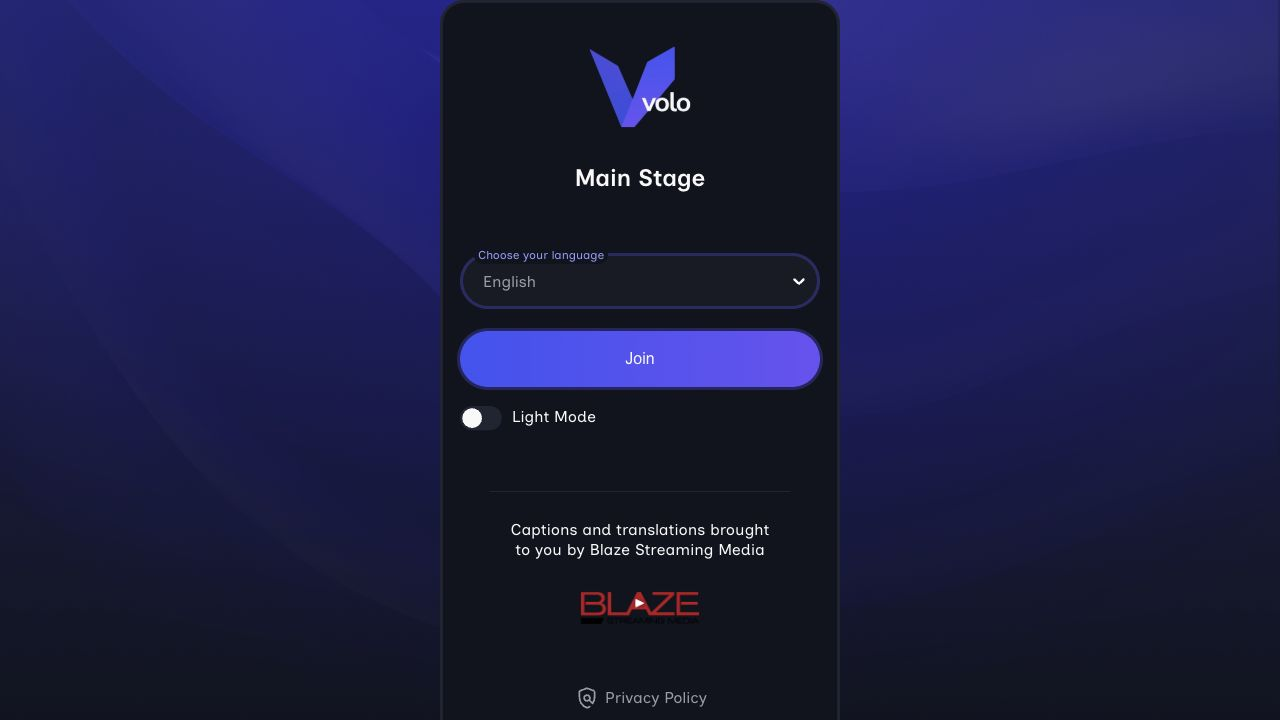
Attendees choose from the languages configured for the room before joining. The same screen carries the room, event, sponsor, and privacy information.
The available choices depend on the room configuration. See Supported languages for the current language catalog.
If the session has not started, the page displays Meeting has not been started yet. Keep the page open or return when the session begins.
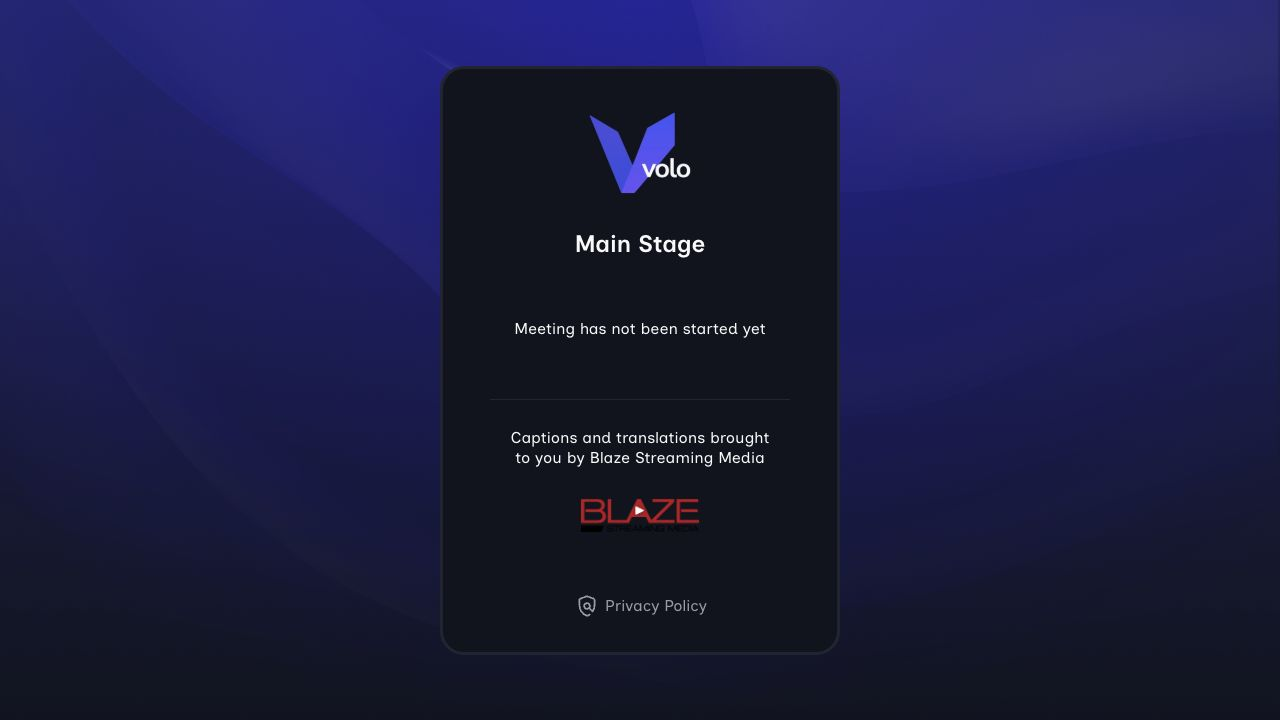
Before the Producer starts the room, attendees see the room identity, event branding, sponsor attribution, and a clear waiting message.
Choose what you use
Section titled “Choose what you use”The bottom menu shows the features available for the room:
- Translation shows translated captions in the language you selected. It is unavailable when you select the original spoken language.
- Transcription shows captions in the original spoken language.
- Audio plays the original or translated audio associated with your selected language.
- Video displays the live room video when the Producer enabled it.
Each control shows On or Off. You can change your selection at any time during the session.
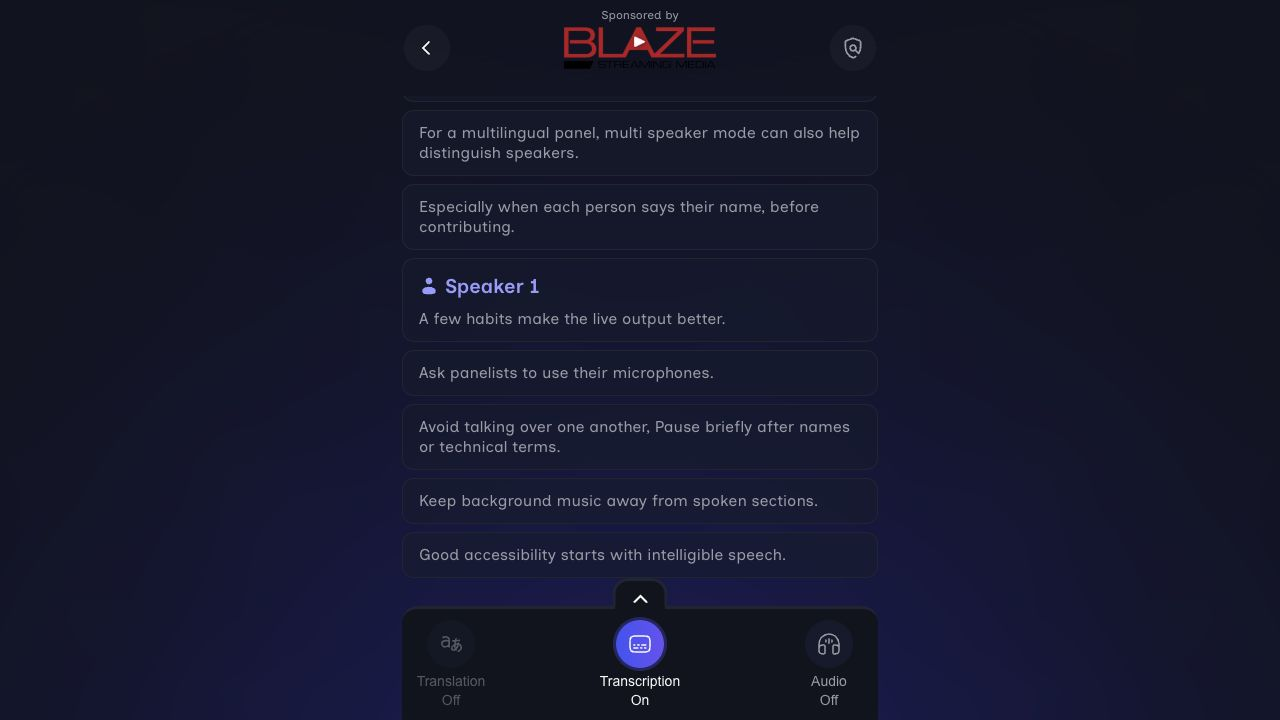
The live attendee view keeps the newest captions in focus while preserving recent context. Speaker labels and the bottom controls remain easy to scan.
Follow a translation
Section titled “Follow a translation”When you choose an audience language and turn Translation on, each caption card shows the translated text with its original-language context. This makes it easier to follow a multilingual session without losing the source wording.
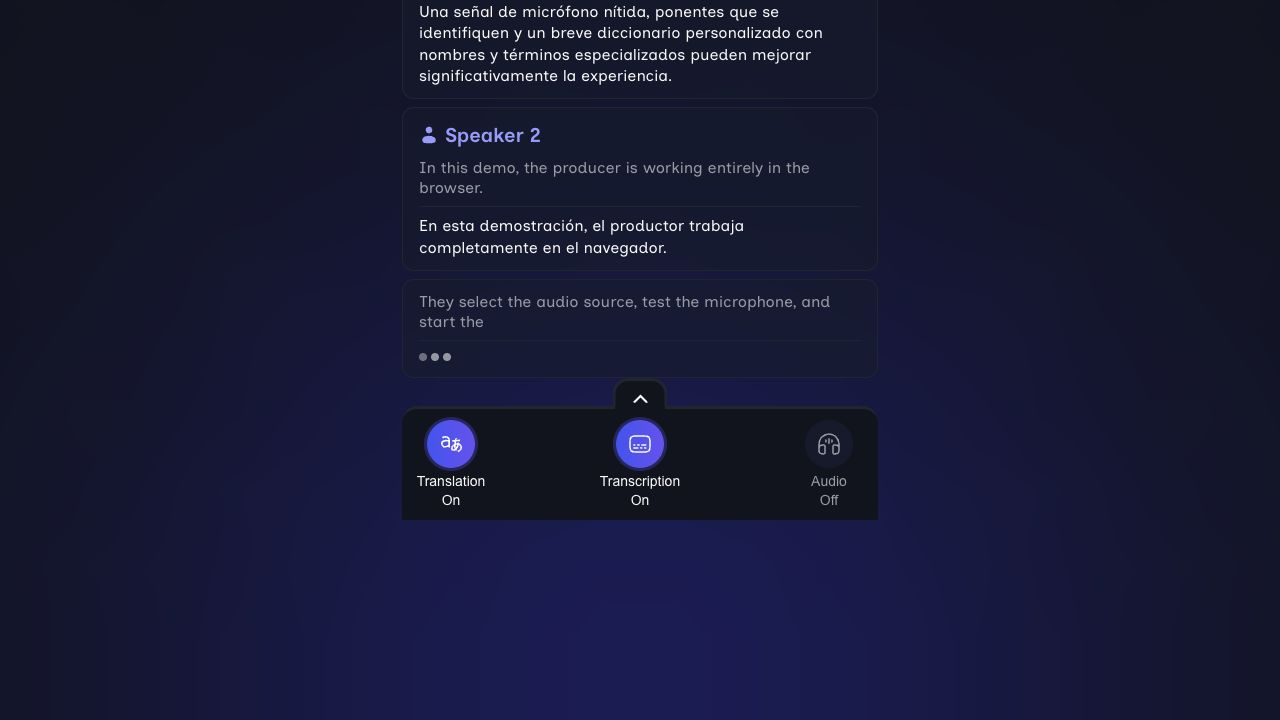
In this Spanish attendee view, original English captions and live Spanish translations appear together while Translation and Transcription remain on.
Read earlier captions
Section titled “Read earlier captions”Scroll upward to review recent caption history. Select Go to Live to return to the newest caption.
The Producer can clear the live transcription and translation history. If that happens, earlier captions are removed from the attendee view.
Accessibility settings
Section titled “Accessibility settings”Open the settings panel above the feature controls to adjust:
- High Contrast Mode.
- Font: Inclusive Sans, Georgia, or OpenDyslexic.
- Font Size: 100%, 125%, 150%, 175%, or 200%.
Select Reset to Defaults to restore the original display settings. Volo stores these preferences in the browser for future sessions on that device.
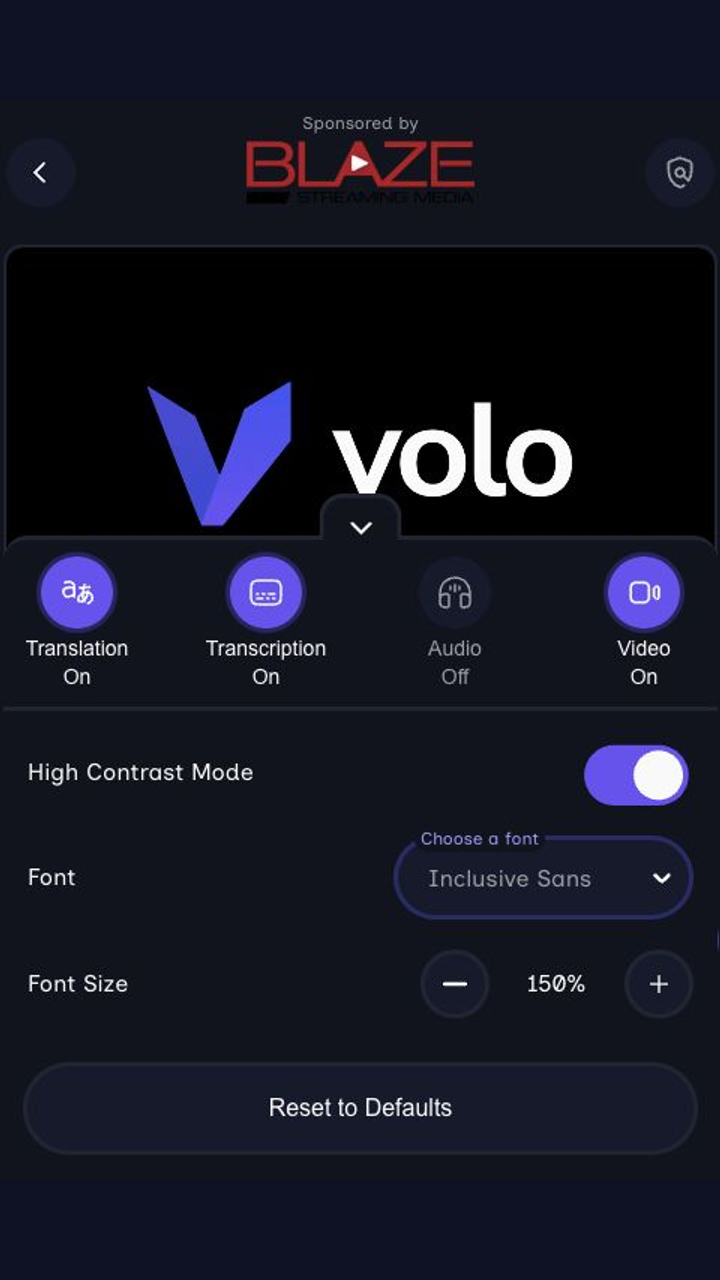
Each attendee can choose higher contrast, a preferred caption font, and larger text without changing anyone else’s view.
Video and full-screen layouts
Section titled “Video and full-screen layouts”When video is available, use the full-screen control to choose:
- Video only.
- Text only.
- Video with text in a horizontal layout.
- Video with text in a vertical layout.
On supported mobile devices, turning the device to landscape can enter the full-screen video experience.
Change language
Section titled “Change language”Use the back control to return to language selection. Volo leaves the current language session, then lets you choose another language configured for the room.
If content is unavailable
Section titled “If content is unavailable”- If audio or video is temporarily unavailable, leave that control off and continue with the available captions.
- If Volo reports a network problem, check the device’s Wi-Fi or cellular connection.
- If the session ends normally, Volo displays a message that the host ended the meeting.
- If the session is interrupted by a technical issue, refresh the page and rejoin when the Producer restores the stream.
For event-specific help, contact the on-site event team. For platform support, see Support.