
Audience and display links
Every room provides a QR code and several tokenized links. Use the link designed for the destination instead of reusing one link everywhere.
Mobile devices
Section titled “Mobile devices”The For mobile devices link opens the standard attendee flow:
- The attendee selects a configured language.
- The attendee joins the active session.
- Controls allow the attendee to turn translation, transcription, audio, and available video on or off.
- Accessibility settings allow changes to contrast, font, and text size.
The room QR code points to this authenticated attendee experience. Download it from the room page for signs, slides, or event materials.
Large screens
Section titled “Large screens”The For large screens link opens the room in full-screen display mode. When video is available, the display supports:
- Video only.
- Text only.
- Video with text in a horizontal layout.
- Video with text in a vertical layout.
Use this link for overflow displays, confidence monitors, shared screens, or other managed viewing surfaces.
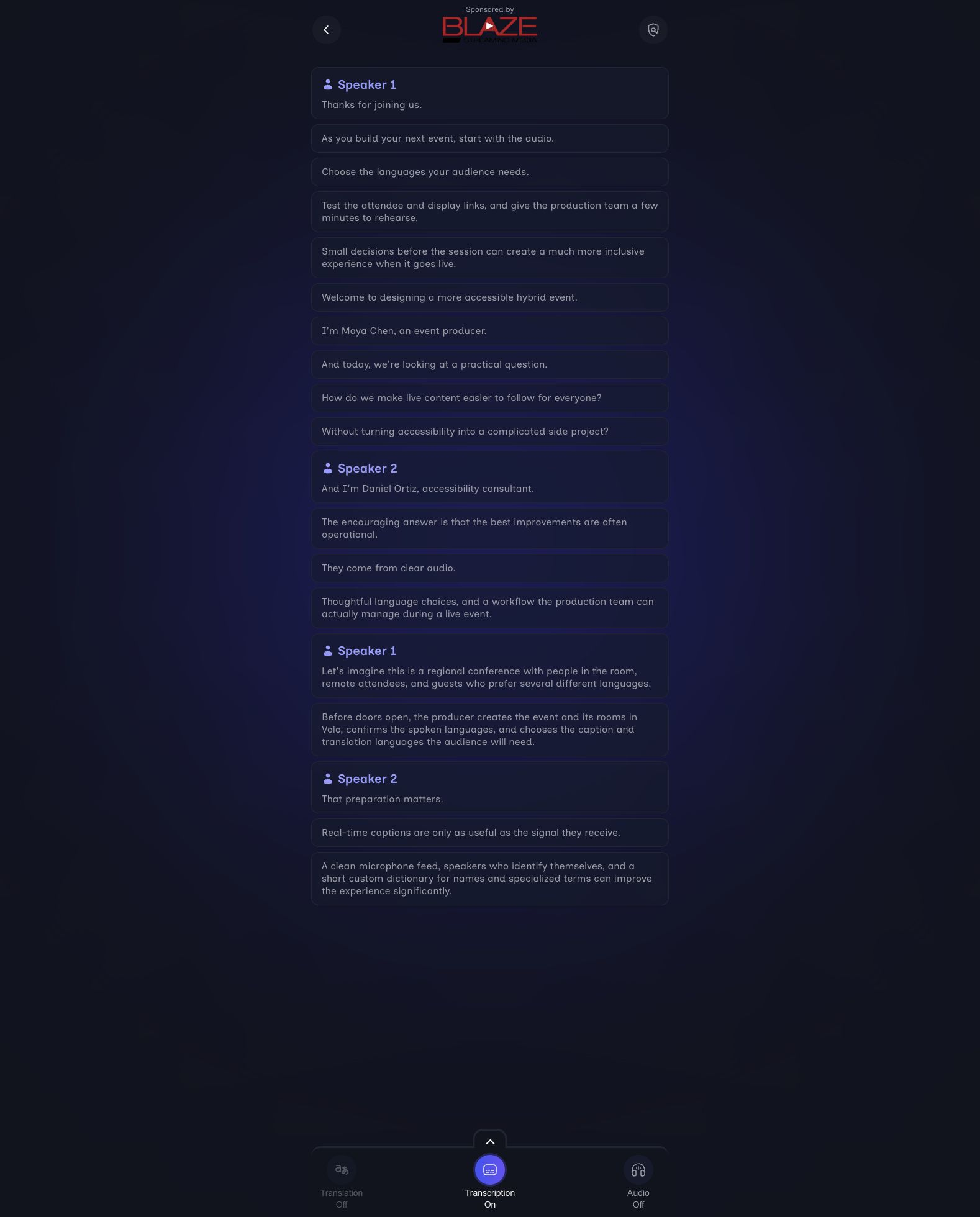
The managed large-screen view presents the active room transcript with event sponsorship, speaker labels, and the attendee feature state.
Text overlays
Section titled “Text overlays”Custom overlay links render a language-specific caption surface for use in a production compositor or browser source.
To add an overlay link:
- Select Add new link for overlays.
- Choose one or more unused output languages.
- Select the font family, font size, number of lines, and background opacity.
- Select Add.
- Copy the generated link into the approved graphics or production workflow.
Available overlay settings are:
| Setting | Options |
|---|---|
| Font | Inclusive Sans, Georgia, OpenDyslexic |
| Font size | 16, 18, 20, or 24 |
| Lines | 1, 2, 3, or 4 |
| Background opacity | 0%, 25%, 50%, 75%, or 100% |
Each language can have one custom overlay link. Existing overlay links can be edited or deleted from the room page.
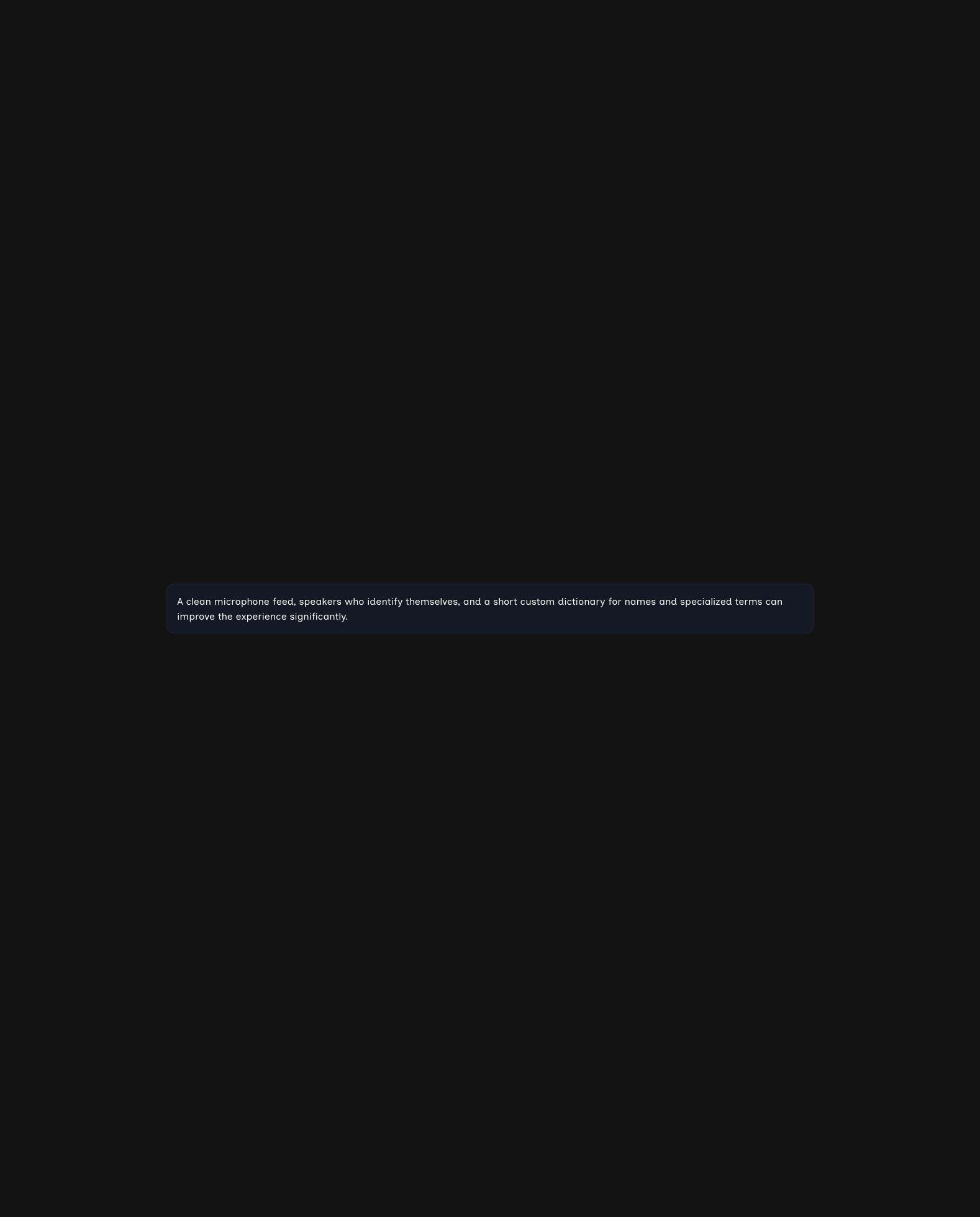
An overlay link isolates the current caption for a browser source or production compositor. This example uses Inclusive Sans, two lines, and a 75% background.
Test every destination
Section titled “Test every destination”Before publishing a QR code or link:
- Open it in a private browser window or a device not signed in as a Producer.
- Confirm that the room and event branding are correct.
- Confirm that the expected language choices appear.
- Start a rehearsal stream and test captions, audio, and video.
- For a large-screen or overlay link, test it on the actual display or compositor.