
Run a live stream
The room page contains the controls for browser ingest. The Producer browser captures the selected audio source and optional video source for the stream.
Preflight checklist
Section titled “Preflight checklist”Before starting:
- Confirm the room name, input languages, audience languages, and sponsor.
- Open the attendee mobile link on a separate device.
- Confirm that the correct audio source appears in the Producer interface.
- If using video, confirm that the correct camera or capture source appears in the preview.
- Select the attendee defaults under Enable on join.
- Use Test microphone and listen to the five-second recording.
- Speak normally and confirm that the level indicator responds without persistent clipping.
Start browser ingest
Section titled “Start browser ingest”Browser ingest captures an audio device and optional video device connected to the Producer computer.
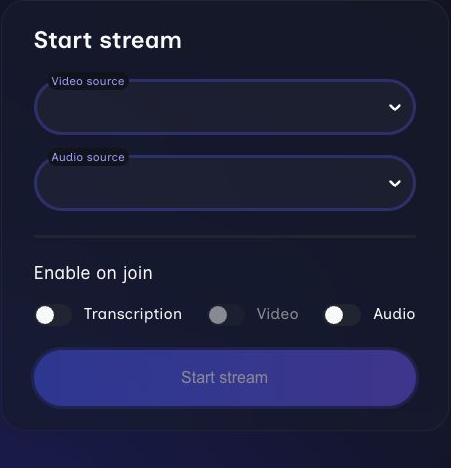
Complete the source and attendee-default checks from the Start stream panel before going live.
- Choose a video source or leave video disabled.
- Choose the program audio source.
- Record and review the microphone test.
- Set the attendee defaults for transcription, video, and audio.
- Start the browser stream after preflight is complete.
- Select an Audio source.
- Select a Video source, or choose Video stream disabled.
- Run Test microphone.
- Choose the Enable on join defaults for transcription, video, and audio.
- Select Start stream.
The stream cannot start without an audio source. If video is enabled, a video source is also required.
Monitor a live stream
Section titled “Monitor a live stream”When the room is live, Volo shows Stream is on and a running timer.
For a browser stream originating from the current device, the page also shows:
- Live audio level detection.
- The selected audio and video sources.
- Video preview when enabled.
- Total packet-loss percentage.
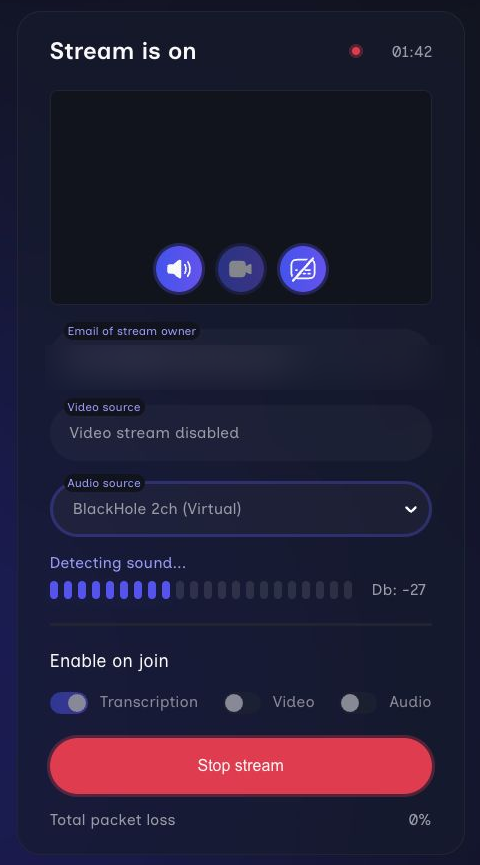
While the room is live, the Producer can confirm stream duration, the active browser sources, incoming audio, attendee defaults, and connection health from one panel.
If another Producer or device owns the stream, the room shows the stream owner’s email and provides an observer view. Audio-source changes are available only from the originating device.
Live controls
Section titled “Live controls”While live, Producers can:
- Mute or restore audio for attendees.
- Disable or restore video for attendees.
- Clear the live transcription and translation history.
- Change the audio source from the originating browser device.
Muting audio also mutes transcription for the attendee experience. Clearing history removes the existing live history from attendee screens; it does not replace the stop-and-archive workflow.
Stop and archive
Section titled “Stop and archive”- Select Stop stream.
- Confirm the stop action.
- Save the caption download initiated by the browser.
- Confirm that the room changes to Offline.
- Expand Transcript on the room page and confirm that the completed session appears.
You can download one session, all sessions for a room, or all room transcripts from the event page.
Starting another stream
Section titled “Starting another stream”A browser can originate only one Volo stream at a time. If another stream is already active from that browser, Volo warns that starting the new stream will stop the existing one.
If the stream is disrupted
Section titled “If the stream is disrupted”When Volo reports Stream disruption detected:
- Keep the room page open.
- Check the Producer computer’s network connection.
- Confirm that the audio or video device is still connected and recognized.
- Verify the audience experience from a separate device.
- If the stream does not recover, stop it and start a new stream after the connection is stable.
See Troubleshooting for symptom-based checks.