
Event Producer guide
Event Producers prepare rooms, verify ingest, run live sessions, and manage the audience experience in Volo. Producers work only with the events to which an Administrator has assigned them.
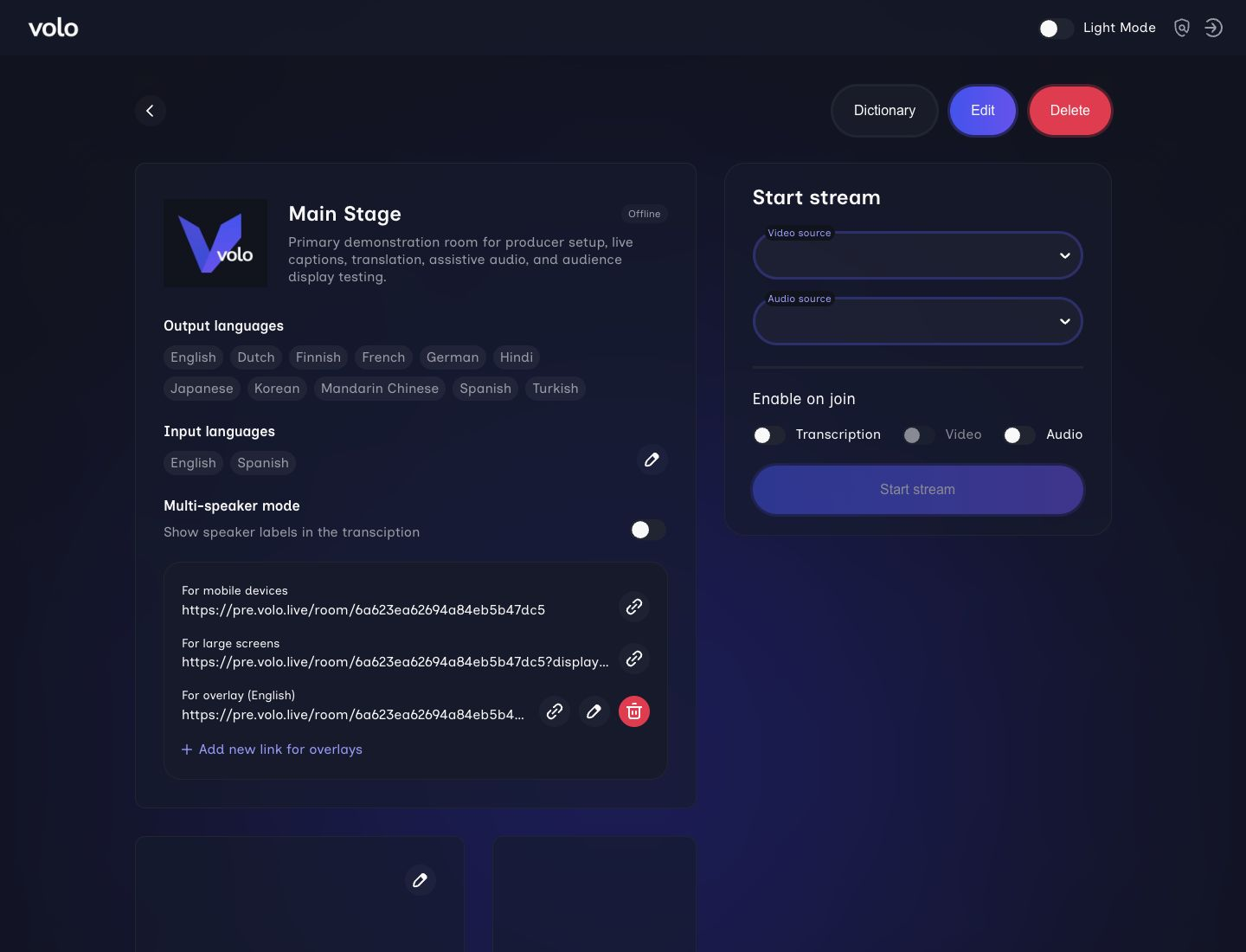
A room brings configuration, audience access, branding, overlays, and browser-ingest controls into one operating view.
Use this guide as the starting point for show preparation and live operation.
Sign in
Section titled “Sign in”- Open the Producer login page supplied by your Volo Administrator.
- Enter the email address that was invited to the event.
- Select Sign in.
- Enter the one-time password sent to that email address.
The login screen shows when the code expires and provides a Resend code action after expiration.
Producer workflow
Section titled “Producer workflow”- Open the event. Confirm the event name, rooms, and current room status.
- Review each room. Verify its description, sponsor, input languages, audience languages, and audience links.
- Prepare terminology. Add names and specialized terms to the event or room dictionary.
- Share access. Download the QR code and copy the correct mobile, large-screen, or overlay link.
- Preflight ingest. Select and test the browser audio source and optional video device.
- Choose join defaults. Decide whether transcription, audio, and video should be enabled when an attendee joins.
- Start and monitor. Follow the run a live stream checklist.
- Stop and archive. Stop the stream, save the downloaded caption file, and verify that the session appears under Transcript.
What Producers can manage
Section titled “What Producers can manage”Event Producers can:
- Edit event names, descriptions, and logos.
- Edit room information, sponsors, input languages, and audience languages.
- Create and manage event-level and room-level dictionaries.
- Download room and event transcripts.
- Download QR codes and copy audience or display links.
- Configure attendee join defaults.
- Start, monitor, mute, and stop streams.
- Clear the live transcription and translation history shown to attendees.
Only Administrators can create or delete events and rooms, or invite and remove Event Producers. See Roles and permissions.
Before doors open
Section titled “Before doors open”- Confirm that you can sign in and see the correct event.
- Confirm that every room has the correct input and audience languages.
- Test each QR code and link in a private browser window or on a separate device.
- Confirm that sponsor and event branding display correctly.
- Test the microphone and any video source from the device that will originate the stream.
- Confirm the attendee defaults for transcription, audio, and video.
- Keep the originating Producer page open while browser ingest is live.
- Have a second device available to verify the attendee experience.